Windows, macOS, iOS and Android can all remove some metadata from a photo without any extra software. None of them removes all of it. Windows clears the fields it recognises, macOS clears the location, and phones clear the location. Everything else stays unless you use a tool that rewrites the whole metadata block.
Key takeaways
- Every built-in method removes a subset, and each one stops at a different place.
- Windows leaves the manufacturer's private block. macOS and phones remove location only.
- Removing the location does not remove the camera serial number, the device model or the timestamp.
- Always clean a copy, and check the result rather than assuming it worked.
What gets removed, and what does not
Definition
Photo metadata is the information written into an image file alongside the pixels: the camera and lens, the exposure settings, the date and time, the location, and whatever the software that touched it added afterwards. It is invisible in the picture and travels with the file.
The gap between methods comes down to how much of that block a tool understands. A camera writes its fields in several standards at once, and manufacturers reserve a private section whose contents they do not publish. A tool can only remove what it can parse. Anything it does not recognise, it leaves alone, which is the safe behaviour and also the reason built-in cleaners under-deliver.
So the useful question is not whether a method removes metadata. It is which fields it removes and which it walks past. If you want the full picture of what is in there before you start, read what EXIF data is first.
How to remove metadata from a photo on Windows
Windows has done this since Vista, and most people have never noticed the menu.
- Right-click the photo and choose Properties.
- Open the Details tab.
- Click Remove Properties and Personal Information at the bottom.
- Choose Create a copy with all possible properties removed, then click OK.
You get a new file next to the original with - Copy in the name. The original is untouched, which is the right default.
Honest limit
Read the wording of that option again: all possible properties. Windows removes the fields it exposes in the Details tab, and stops there. The manufacturer's private block, which is where camera serial numbers and dozens of undocumented entries live, is not in that list. Neither are most XMP fields written by editing software. The file will look clean in Windows and still carry a great deal.
The second option in that dialog, which removes selected properties in place, edits the original rather than a copy. Use the first one unless you are certain.
How to remove metadata from a photo on macOS
macOS gives you less than Windows, and is clearer about it.
- Open the photo in Preview.
- Choose Tools, then Show Inspector.
- Open the GPS tab.
- Click Remove Location Info.
That is the whole feature. It removes the location and nothing else. There is no built-in way to clear the camera model, the exposure settings or the timestamp in Preview, and the Photos app does not offer one either.
If you are comfortable in Terminal, ExifTool does the full job on macOS and is what we use under the hood. For a single photo it is more setup than most people want.
How to remove metadata on iPhone and Android
Both handle this the same way conceptually, and both stop at location.
On an iPhone, open the photo in Photos, tap the info button, then Adjust, then No Location. You can also strip location at the moment of sharing: in the share sheet, tap Options at the top and turn off Location.
On Android the wording varies by manufacturer, but the pattern holds. Open the photo in Google Photos, tap the information panel, and remove the location from the map entry.
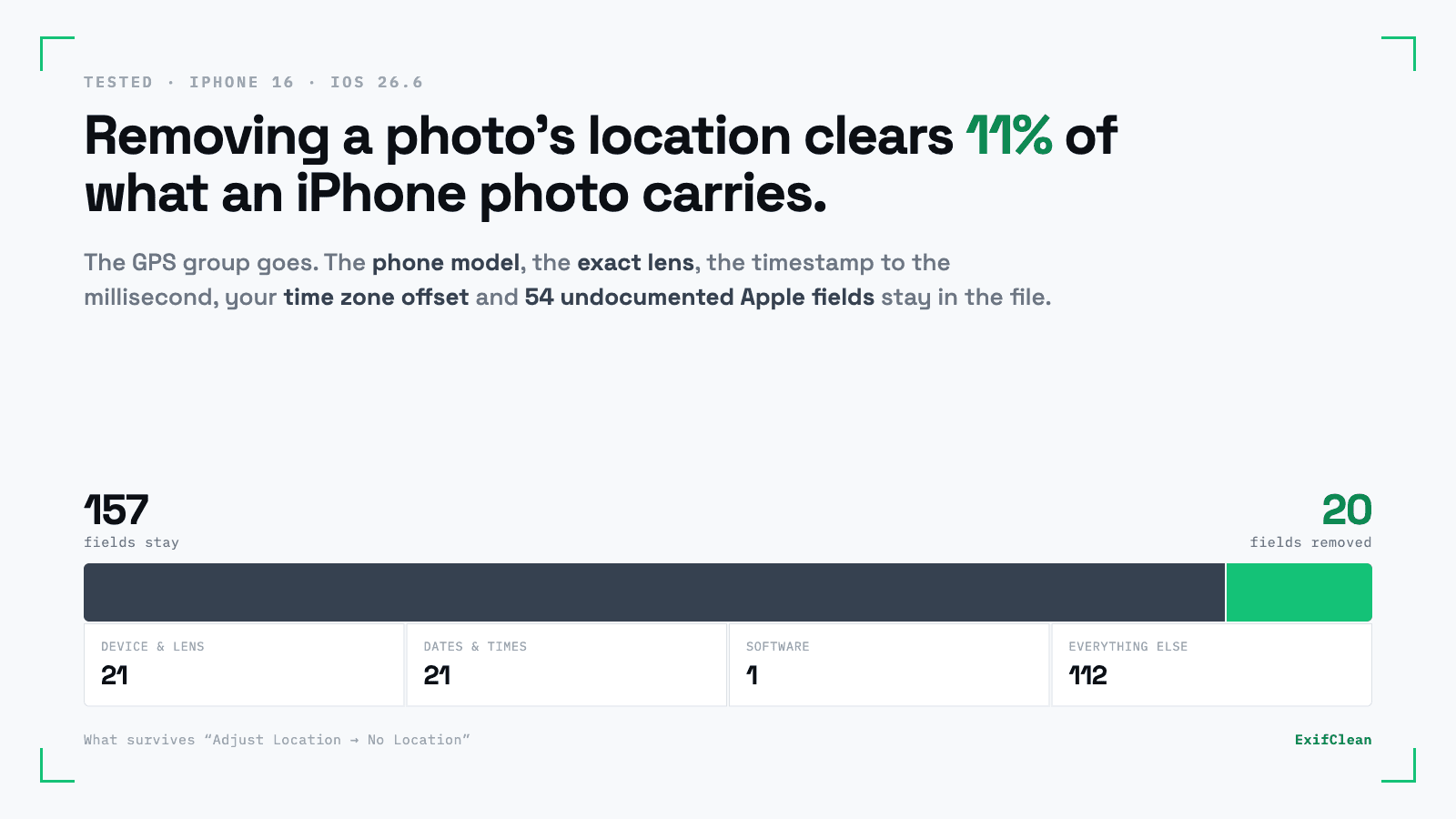
We measured what is left after this on an iPhone: removing the location deleted 20 fields and left 157 in place, including the phone model, the lens and the timestamp to the millisecond. The step by step, with the full count, is in how to remove photo metadata on an iPhone.
How to remove all metadata in one pass
When the file needs to be genuinely clean, use a tool that rewrites the whole metadata block rather than the parts one operating system happens to expose.
Open the photo in our metadata remover and choose to erase everything. You can also remove one category at a time: the location, the AI fingerprints, the manufacturer's private block, the embedded thumbnail. The file is processed and the temporary copy is deleted straight afterwards. Your original never changes, and you download a clean copy.
The pixels are not re-encoded. Metadata sits in its own section of the file, so it can be rewritten without touching the image, which means no quality loss and no colour shift. The ICC profile and the orientation flag are kept on purpose, because removing those breaks how the photo displays.
Is it safe to use an online metadata remover?
It is a fair question, and the forum threads that rank for this search are full of it. You are about to hand a photo you consider sensitive to a website you have never heard of, in order to make it less sensitive. The irony is not lost on anyone.
Three things are worth checking before you trust any of them, ours included.
Where the file goes. A tool has to receive the file to rewrite it. What matters is what happens next: whether the image is written to permanent storage, how long a temporary copy lives, and whether anything is kept after the download. Our answer is that the file is processed and the temporary copy is deleted straight afterwards, and nothing is stored. Our privacy policy says so in plain terms rather than in a paragraph of hedging.
Whether the original is touched. Any tool that modifies your file in place rather than producing a copy is one misclick from losing data you wanted.
What it claims. A tool that promises to make your photo undetectable, or to defeat an AI detector, is either misunderstanding the problem or selling you something. Metadata removal cleans the metadata. It cannot reach a watermark written into the pixels, and it cannot reach a copy you already uploaded somewhere else.
If none of that reassures you, the offline route is legitimate and we will not argue with it. The Windows and macOS methods above never leave your machine, and ExifTool on the command line does the complete job locally. Use them.
Which method should you use?
Method | Removes | Leaves | Good for |
|---|---|---|---|
Windows Properties | Fields Windows recognises | Manufacturer's private block, most XMP | A quick pass on your own machine |
macOS Preview | Location | Everything else | Removing a location and nothing more |
iPhone or Android | Location | Device model, lens, timestamps, serial | Sharing a photo without a map pin |
Full metadata rewrite | Everything, or chosen categories | Nothing you did not choose | Publishing, selling, sending to a stranger |
The pattern is consistent. Built-in tools solve the problem people already know they have, which is location. The fields that identify a device, and therefore link photos to each other, survive all of them.
Before you clean anything
Two habits are worth keeping.
Work on a copy. Metadata removal is not reversible on the file you cleaned. Your original holds the capture date, the settings and the location, and you will want them one day.
Check the result. Do not assume a method did what its menu item claims. Open the cleaned file in an EXIF viewer and look. It takes a few seconds and it is the only way to know which of these methods worked on your particular file, from your particular camera.
Questions answered
Does removing metadata change how the photo looks?
No, as long as the tool rewrites the metadata rather than re-saving the image. The pixels sit
Can I remove metadata from several photos at once?
Yes. Windows accepts a multiple selection in the Properties dialog, and ExifTool handles whole
Does uploading to a social network remove metadata?
Most platforms strip a large part of it, and several keep the original on their own servers
Can metadata be recovered after removal?
Not from the cleaned copy. Any other copy still has it, including your original, your backup
Which fields should I remove and which should I keep?
If you are publishing your own photography, keep the copyright and creator fields and remove