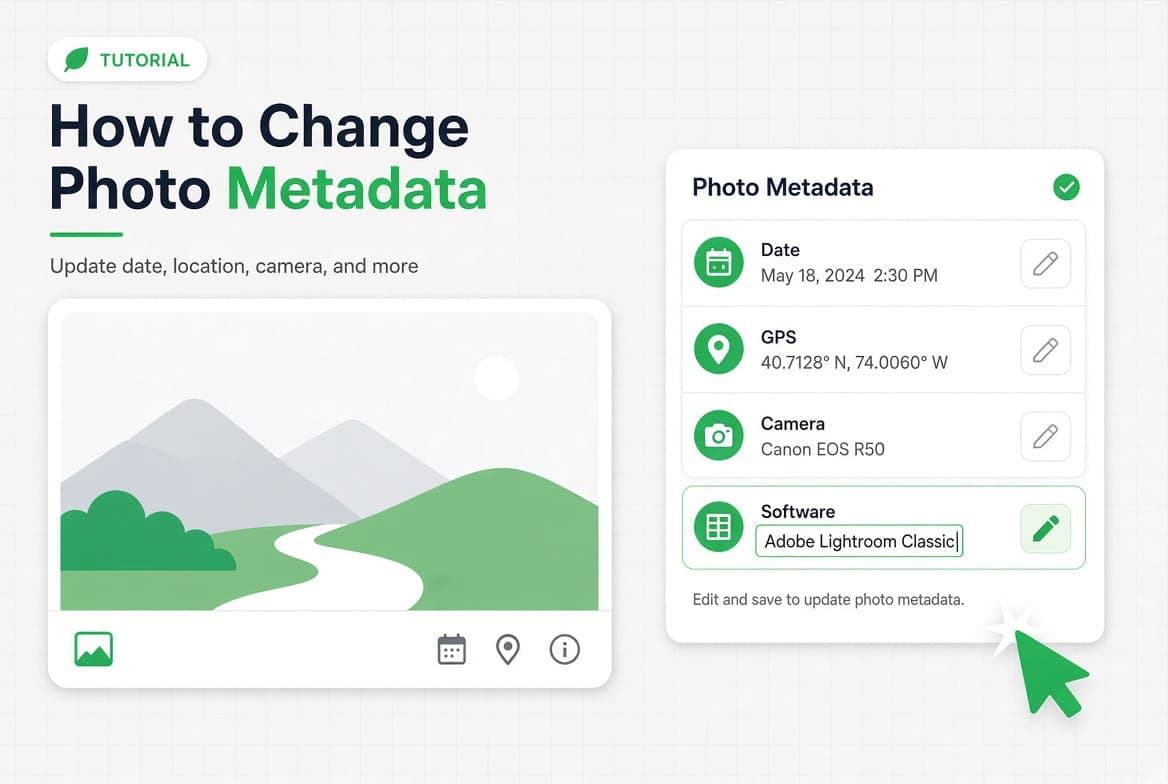
You can edit a photo's metadata in Windows Properties, in the macOS Photos app, or in a metadata editor that writes every field. The common cases are a capture date recorded by a camera with the wrong clock, a scanned photo carrying the date of the scan, and a copyright line that needs adding before the picture goes out.
Key takeaways
- A photo carries several date fields, and fixing only one leaves your library sorted wrong.
DateTimeOriginalis the capture date. That is usually the one you mean.- A field written into only one of the three metadata standards often disappears at the next edit.
- Editing metadata changes what the file says about itself. It does not change the picture.
Why you would change photo metadata
Three reasons account for almost all of it, and none of them is suspicious.
The camera clock was wrong. You crossed a time zone, or replaced a battery, or never set the clock at all. Every photo from that trip now sorts into the wrong place, and any software that groups by date gets it wrong with them.
The photos were scanned. A scan of a 1994 photograph carries a capture date of whenever you scanned it. Correcting that is the difference between a pile of files and an archive.
The credit is missing. A photograph going out for publication needs a creator, a copyright notice and often a caption. Filling those in is ordinary editorial work, and it is what the IPTC fields were designed for in the first place.
How to change the date of a photo
Before you change anything, know which date you mean.
Definition
A photo usually carries three dates. DateTimeOriginal is when the shutter fired. CreateDate is when this file was created, which is often the same moment. ModifyDate is when the file was last written, and it changes every time software touches it.
The one you almost always want is DateTimeOriginal. It is what photo libraries sort by and what people mean by "the date of the photo".
The trap is fixing one and leaving the others. Change DateTimeOriginal alone and some programs will still group the photo by CreateDate, so your library ends up half corrected and harder to reason about than before you started. Set both, and let ModifyDate do its job of recording the edit.
To do it, open the photo in our metadata editor, find the date fields, and set them. You download a corrected copy; your original is not modified. If you are fixing a whole trip, work out the offset from one photo you can date confidently, then apply the same shift to the rest.
Fixing the date on scanned photographs
Scans are the case where this matters most, and the one where the default behaviour is least helpful. A scanner writes the date of the scan, so a shoebox of family photographs becomes a folder of files all created last Tuesday.
Set DateTimeOriginal to the date the photograph was taken, not the date you scanned it. Where you only know the year, most software accepts a date with the day and month set to the first of January, and that still sorts correctly against everything else in the archive.
Two habits pay off later. Put whatever you know into the caption and keywords while you are in there, because you will not remember in five years who is in the picture. And keep the scan itself untouched somewhere, so the corrected copy is a derivative rather than the only version you have.
How to add a copyright notice and creator
These live in the author fields, and they are the reason IPTC exists.
The ones worth filling in are the creator, the copyright notice, and the credit line. A caption and a few keywords help too if the photo is going into an archive where someone will search for it later.
Open the photo in the metadata editor, fill in the fields, and download. Setting them once on a template and reusing it is faster than retyping a copyright notice for every file.
How to edit photo metadata on Windows
- Right-click the photo and choose Properties.
- Open the Details tab.
- Click the value next to a field. Editable ones become text boxes.
- Type the new value and click OK.
Windows lets you edit a modest set of fields: title, subject, tags, comments, authors, copyright, and the date taken. It will not touch anything it does not recognise, and it writes only where Windows writes.
How to change a photo date on macOS
The Photos app handles the common case directly.
- Select the photo in Photos.
- Choose Image, then Adjust Date and Time.
- Set the correct date. Photos will offer to shift a whole selection by the same amount, which is what you want for a trip.
There is a matching Location entry in the same menu for adding or correcting a place. Outside Photos, Preview will not let you edit these fields.
Write it once, in all three places
This is the part that catches people out, and it is the reason a copyright line you set last year is not in the file any more.
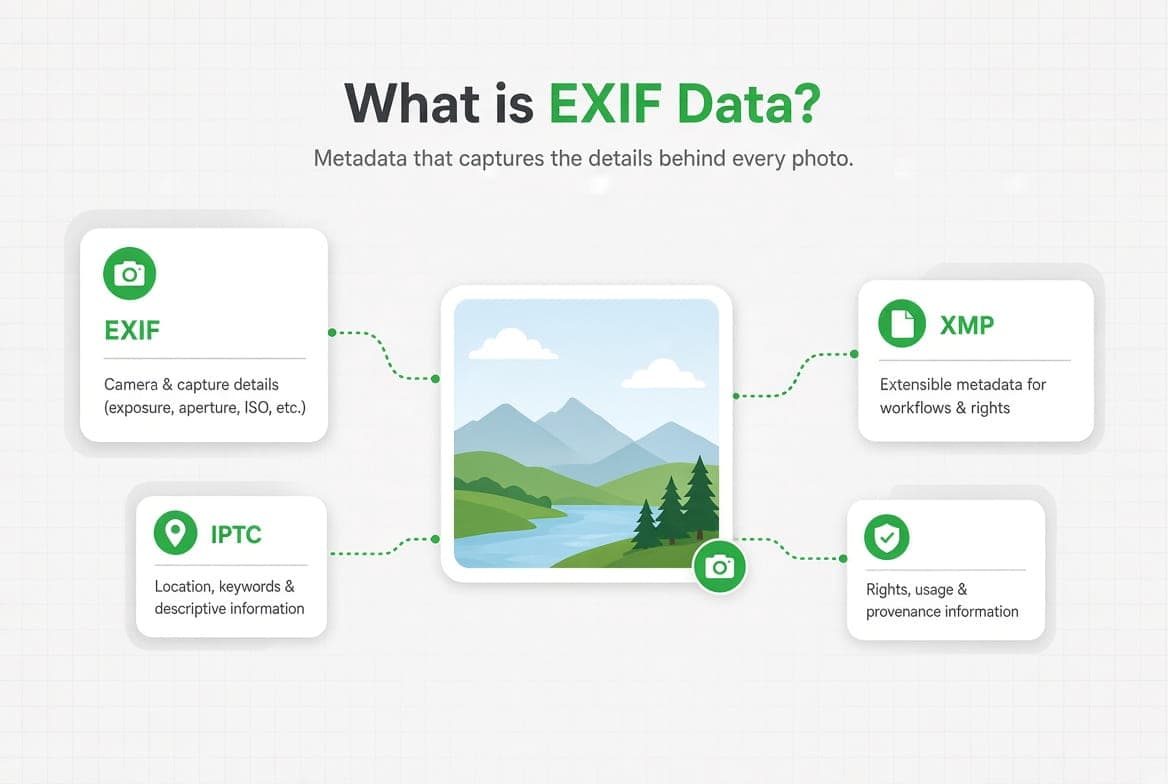
A photo carries EXIF, IPTC and XMP, and the same fact can live in all three. Different programs read different ones. Write a copyright notice into XMP only, and a program that reads IPTC shows the field as empty; the next time that program saves the file, it may write its own empty value over yours.
So a field worth setting is worth writing everywhere it belongs. Our editor writes each logical field into EXIF, IPTC and XMP at once for this reason. If you use another tool, it is worth checking the result in an EXIF viewer rather than assuming, and how to view photo metadata covers how to read what you find.
What changing metadata does not do
Honest limit
Editing metadata changes what a file says about itself. It does not change the picture, and it does not rewrite history. Your original still holds the real values, as does every copy you have already shared and every backup. Metadata is a description, not a record of truth, which is exactly why it should never be treated as proof on its own. That cuts both ways: it is why correcting a wrong clock is legitimate, and why a date in a file is a claim rather than evidence.
If any of the vocabulary here is unfamiliar, what EXIF data is sets out which standard holds what.
Questions answered
Which date field should I change?
`DateTimeOriginal` in almost every case, and `CreateDate` alongside it so software that sorts by
Can I change the date of many photos at once?
Yes. The macOS Photos app shifts a whole selection by the same offset, which is the right tool
Does editing metadata change the image quality?
No, as long as the tool rewrites the metadata rather than re-saving the image. Metadata sits in
Can I edit the GPS location of a photo?
Yes, and it is a normal thing to do when a phone recorded a bad fix or a scanned photo has no
Why did my copyright field disappear?
Almost always because it was written into only one of the three metadata standards, and a later